
Online Audio Utility • Works in Safari
iPhone Speaker Cleaner Online
Clean your iPhone speaker with controlled sound — no app download required. If your iPhone speaker sounds muffled after light moisture, dust, or debris exposure, a short sound-based cleaning cycle may help. The tool cannot repair physical speaker damage or liquid damage inside the phone.
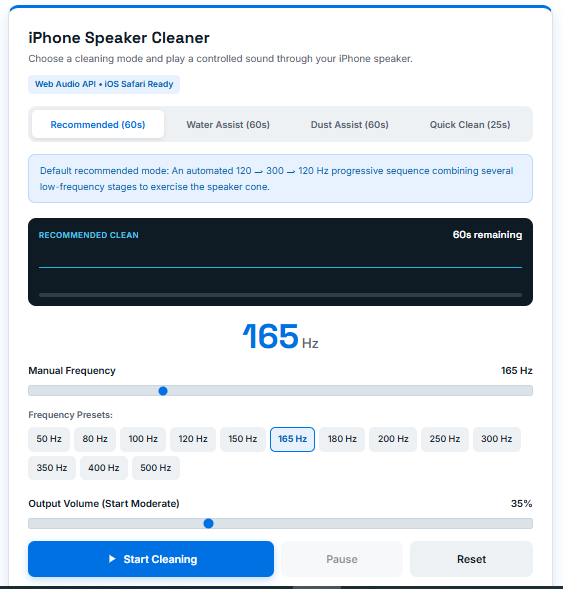
iPhone Speaker Cleaner
Choose a cleaning mode and play a controlled sound through your iPhone speaker.
iPhone Speaker Cleaner Safety Tips
- Start at moderate volume (30–40%). Do not place the speaker next to your ear while cleaning tones are playing.
- Stop the sound immediately if you hear harsh distortion, rattling, buzzing, or abnormal speaker behavior.
- Do not use compressed air: Apple explicitly warns against using canned compressed air on iPhone speaker ports.
- For wet iPhones: Disconnect cables and do not charge until the device is completely dry. Do not use heat or hair dryers.
- Do not insert pins, needles, or metal objects into the speaker openings.
Why Choose Our iPhone Speaker Cleaner Online?
Our browser-based tool gives you a simple way to play controlled sound through your iPhone speaker when light moisture or loose debris may be affecting sound quality. No app installation is required.
- No App Download: Run the cleaner directly from Safari or your preferred iOS browser.
- Sound-Based Cleaning: Play controlled low-frequency tones through the speaker.
- Multiple Cleaning Modes: Choose a quick cycle, moisture assist, dust sweep, or manual frequency.
- Speaker Testing: Check your audio before and after cleaning.
- Privacy-Friendly: Audio is generated locally in the browser rather than uploaded to a server.
What Is an iPhone Speaker Cleaner?
An iPhone speaker cleaner is a browser tool that plays controlled audio frequencies through the phone's speaker. The speaker movement may help loosen some loose moisture or debris around the grille, but it cannot repair damaged hardware.
Why Might You Need One?
- Your iPhone speaker sounds muffled after rain or workouts.
- Audio became noticeably quieter after moisture exposure.
- The bottom speaker grille has accumulated pocket lint or dust.
- Music or voice calls sound less clear than usual.
- You want to test the speaker output after cleaning.
iPhone Speaker Cleaner Process
Follow these 6 straightforward steps to clear your speaker grille safely without harsh tools or risky practices.
Open the Tool
Launch Speaker Cleaner Online in Safari — no app installation or account required.
Set Moderate Volume
Start your iPhone volume around 35–40% for safe acoustic vibration without distortion.
Place Face Down
Tilt your iPhone speaker port facing downward so gravity helps carry dislodged debris outward.
Run Sound Cycle
Press Start Cleaning and let the multi-frequency audio sweep exercise the speaker diaphragm.
Wipe Grille Clean
Use a soft, clean, lint-free microfiber cloth to gently wipe exterior moisture or dust.
Test Speaker
Play our diagnostic audio test or music to verify clarity and restored volume.
Benefits of Using an iPhone Speaker Cleaner Online
💧 Moisture Assist
A controlled sound cycle may help dislodge light moisture droplets trapped across the grille.
🧹 Dust & Debris
Frequency sweeps vibrate the diaphragm to help loosen dry pocket lint clinging to the mesh.
🔊 Audio Clarity
Evaluate whether muffling clears up after exercising the speaker across resonance points.
📱 No App Required
Zero App Store downloads, zero account sign-ups, and zero background battery drain.
🎛 Frequency Control
Try standard presets like 165 Hz or fine-tune your own frequency between 50 and 500 Hz.
🧪 Speaker Testing
Verify bass, midrange, treble, and stereo balance directly within the same interface.
🔒 Privacy-First
All tones are synthesized locally in Safari via the Web Audio API without server tracking.
⚡ Quick Process
Complete a targeted cycle in under 60 seconds instead of looping loud audio endlessly.
Test Your iPhone Speaker
Play benchmark audio frequencies to verify clarity across the acoustic spectrum without leaving this page.
Test Before and After Cleaning
Follow this simple verification flow to objectively determine if your speaker sounds clearer:
Before Cleaning
Play our 440 Hz test tone and listen for muffling, crackling, or low volume.
Clean
Run the 60-second Recommended Clean or Water Assist with speaker facing down.
After Cleaning
Play the test tone again. Did acoustic clarity and loudness improve?
Did the sound improve?
Common iPhone Speaker Problems & Solutions
🔊 Muffled Sound
A muffled speaker happens when the opening is blocked by debris, moisture is affecting the mesh, or a case obstructs the port. Remove the case, inspect for lint, allow drying if wet, and try our 60-second sound sweep.
🔉 Too Quiet
Check the volume slider, ensure Silent mode or Focus is not restricting media, check that audio isn't routed to AirPods, and verify that the bottom speaker slots aren't clogged with pocket dust.
🔧 Crackling Audio
Do not repeatedly run cleaning sounds. Lower the volume, restart your iPhone, test another audio source, and allow the phone to dry if it was exposed to liquid. Persistent crackling suggests a torn speaker cone.
⚠️ Distorted Sound
Distortion can result from physical debris, trapped water, high volume overdrive, or hardware failure. A cleaner cannot repair damaged speaker hardware.
❌ No Sound at All
Check Silent mode, volume settings, Bluetooth routing, AirPlay outputs, and restart the iPhone. If no sound plays across calls and media, schedule service with Apple Support.
💧 Recently Wet Speaker
Disconnect charging cables immediately. Dry the exterior, place the speaker facing down on a cloth, let it air-dry naturally, and run Water Assist only after exterior drying.
How to Get Water Out of an iPhone Speaker
If your iPhone has recently been exposed to liquid, do not treat a speaker-cleaning sound as a substitute for proper drying. A sound cycle may be useful only as a supplementary option when light moisture is affecting the speaker.
Apple advises disconnecting all cables and avoiding charging until a wet iPhone is completely dry. Apple also recommends tapping the iPhone gently against your hand with the connector facing down to remove excess liquid, leaving it in a dry area with airflow, and warns never to use compressed air or heat sources like hair dryers.
- Disconnect all cables and accessories immediately.
- Do not plug in the charger while the port or speaker is wet.
- Wipe the exterior thoroughly with a soft, lint-free cloth.
- Tap the phone gently against your palm with the speaker facing downward.
- Leave the device in a well-ventilated area to dry naturally.
- Once exterior moisture is handled, run our water eject assist sound to help dislodge lingering droplets from the mesh.
How to Clean Dust From an iPhone Speaker
Dust and pocket lint frequently accumulate inside the bottom speaker slots and the top earpiece receiver. To clean them safely without voiding warranties or damaging transducers:
- Do: Remove the phone case, inspect openings under a bright light, and use a small, clean, dry, soft-bristled toothbrush to gently sweep across the grilles.
- Do: Run our 120–300 Hz Dust Assist sound sweep to vibrate the diaphragm and shake loose dry particles. Read our full guide on how to clean dust from your phone speaker.
- Don't: Never insert needles, pins, safety clips, or toothpicks into speaker holes. Sharp objects can puncture the waterproof protective mesh and ruin the speaker cone beneath.
- Don't: Never spray compressed canned air or apply liquid cleaning solvents directly to the speaker openings.
Why Does My iPhone Speaker Sound Muffled?
Your iPhone speaker may sound muffled because the speaker opening is blocked by dust or lint, moisture is affecting the speaker area, a case or protector is interfering with the opening, or there is an audio routing issue.
| Possible Cause | Recommended Action |
|---|---|
| Dust and pocket lint | Inspect grille and gently clean with a clean, dry, soft-bristled brush. |
| Surface moisture | Tap phone gently, speaker down; let dry; try Water Assist sweep. |
| Case obstruction | Remove bulky protective case and re-test audio output. |
| Bluetooth / AirPlay routing | Disconnect AirPods or external wireless speakers in Control Center. |
| Low volume / Focus Mode | Check volume rocker, Silent switch, and Focus / Do Not Disturb settings. |
| Hardware damage | If muffling persists after drying and cleaning, seek Apple authorized service. |
How Does the iPhone Speaker Cleaner Work?
Your iPhone speaker contains a flexible diaphragm that creates sound by moving air. This tool generates mathematically pure sine-wave tones in Safari via the MDN Web Audio API. When you tap Start, an OscillatorNode drives an electrical signal through a calibrated GainNode, commanding the speaker driver to vibrate at exact frequencies.
At low bass frequencies (100–300 Hz), the micro-transducer undergoes maximum physical cone excursion. This mechanical piston action moves air through the mesh, dislodging loose dust and rupturing surface-tension water barriers. The tool does not physically inspect the speaker, detect water, or repair damaged hardware.
What Is 165 Hz and Why Is It Used?
165 Hz is a low-frequency audio preset commonly used by speaker-cleaning tools. It is included here as one option, not as a guaranteed magic frequency for every iPhone. Lower frequencies create relatively larger speaker diaphragm movement than high-frequency treble tones. However, different iPhone generations feature different speaker enclosures, acoustic port volumes, and damping materials. That is why our tool provides a multi-frequency automated sweep rather than relying solely on a single static tone.
Does an iPhone Speaker Cleaner Really Work?
Yes, within physical limitations. Acoustic radiation pressure can physically displace water droplets and shake loose powdery dust. However, sound waves cannot:
- Repair physically torn speaker cones or burnt voice coils.
- Dissolve sticky sugars, sodas, or oils baked into the mesh.
- Reverse internal water corrosion on motherboard components.
- Fix software bugs or broken audio codecs.
To learn more about experimental audio testing, read our research on whether speaker cleaner sound really works.
What Can Our iPhone Speaker Cleaner Do?
| Capability | Status | Details |
|---|---|---|
| Browser-based (no app required) | ✓ Available | Runs directly in Safari or Chrome on iOS. |
| Water / moisture assist | ✓ Available | Controlled 100–250 Hz low-frequency sweep. |
| Dust & debris assist | ✓ Available | Controlled 120–300 Hz sweep. |
| 165 Hz preset | ✓ Available | Standard industry benchmark preset. |
| Speaker test suite | ✓ Available | Bass, Mid, Treble, High, and Stereo tests. |
| Hardware repair | ✗ Not Possible | Sound cannot repair blown or torn drivers. |
| Automatic water detection | ✗ Not Possible | Browsers cannot measure moisture percentage. |
Supported iPhone Models
The tool works through the browser's native audio output, making it compatible with all modern iPhones running Safari or compliant iOS browsers, including:
iPhone 16 & 17 Series
iPhone 16, 16 Plus, 16 Pro, 16 Pro Max, and future generations.
iPhone 14 & 15 Series
iPhone 15, 15 Pro Max, iPhone 14, 14 Plus, and 14 Pro stereo systems.
iPhone 12 & 13 Series
iPhone 13, 13 mini, 13 Pro, iPhone 12, 12 mini, and 12 Pro.
iPhone 11 & X Series
iPhone 11 Pro, iPhone XR, XS Max, and iPhone X acoustic enclosures.
iPhone 7, 8 & SE
iPhone SE (2nd/3rd gen), iPhone 8, and iPhone 7 dual-speaker setups.
Other Platforms
Also compatible with Android via our Android speaker cleaner or Samsung speaker cleaner.
Explore More Audio & Speaker Tools
Frequently Asked Questions
What is an iPhone speaker cleaner?
It is an in-browser audio utility that plays controlled low-frequency sound waves through your iPhone speaker to help loosen dust and surface moisture.
Can I clean my iPhone speaker online?
Yes. This tool operates directly in Safari or Chrome on your iPhone without requiring an app download or account.
How do I clean an iPhone speaker?
Remove your case, gently brush away visible lint with a soft dry brush, and play our 60-second Recommended Clean at moderate volume with the speaker facing down.
Can sound remove water from an iPhone speaker?
Sound vibrations help displace water droplets trapped across the speaker grille. However, natural air drying is still necessary to dry internal moisture.
What frequency cleans an iPhone speaker?
Low frequencies between 120 Hz and 300 Hz work best because they induce maximum diaphragm excursion to push air outward.
Is 165 Hz good for iPhone speaker cleaning?
165 Hz is a solid baseline frequency, but sweeping across 120–300 Hz is generally more effective across various iPhone models.
How do I fix a muffled iPhone speaker?
Inspect the grille for dust, confirm audio isn't streaming to AirPods, allow the phone to dry if exposed to water, and run our Recommended Clean sound sweep.
Why is my iPhone speaker quiet?
Quiet audio can result from low volume settings, Focus / Silent mode restrictions, clogged grille mesh, or active Bluetooth connections.
How do I remove dust from my iPhone speaker?
Use a clean, dry, soft-bristled brush across the bottom slots, then run our 60-second Dust Assist sound sweep to help shake free loose particles.
Can I use this after dropping my iPhone in water?
Yes, but dry the exterior first with a towel and disconnect all cables. Do not charge a wet iPhone, and use the sound tool as a supplementary step.
Can this repair a damaged iPhone speaker?
No. Physically torn speaker diaphragms or burned-out voice coils require physical hardware repair by Apple or an authorized technician.
Does iPhone speaker cleaner require an app?
No. It runs entirely inside web browsers using the native Web Audio API without needing App Store downloads or device permissions.
Does the cleaner work in Safari?
Yes. The tool is fully optimized for iOS Safari, featuring touch-activated audio context initialization and clean gain automation.
Can I use the cleaner with AirPods connected?
No. Disconnect AirPods and Bluetooth devices so the sound plays directly through your iPhone's built-in speaker.
What should I do if the speaker still sounds muffled?
Allow the device to dry for 24 hours if moisture was present. If distortion continues across multiple apps, consult Apple Support for hardware inspection.
Should I use compressed air to clean my iPhone speaker?
No. Apple strongly warns against compressed air because the high pressure can rupture acoustic seals and internal membranes.
Can I use a brush to clean my iPhone speaker?
Yes. Apple recommends using a small, clean, dry, soft-bristled brush to gently remove surface debris from speaker openings.